Showing posts with label Paste Values. Show all posts

Thursday, May 26, 2011

The Round Formula

Do you need to round your numbers? Maybe get rid of cents in a currency calculation? Do you need to make sure that you don’t end up with half cents? The ROUND function will take care of that for you.

As an example, let’s say you sell fruit. At the end of the day, you sold 25 apples and collected $14.35. This averages out to 57.4¢ each. Obviously there is no such thing as .4 cents! Therefore you would need to ROUND that number. The ROUND formula takes the form of =ROUND(Number or calculation to round, Number of decimal places) Usually, anything dealing with currency or dollars, you will want to round it to 2 decimal places - unless you’re dealing with very large numbers and cents are insignificant; then you’ll want to round to 0 decimal places (dollars only; no cents).

Here’s our example:
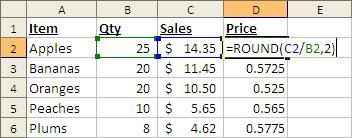


And after applying the formula:
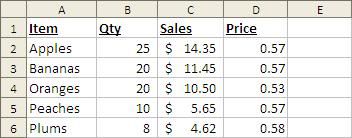


Once you are done, you can Copy & Paste Values or simply leave the formula as is. It’s up to you!


NOTE:

If you don’t use the ROUND formula and simply apply the currency formatting, or any other formatting that formats numbers to 2 decimal places; that is only formatting! You only SEE numbers out to 2 decimal places, but the data may still have more. Just keep that in mind when using that type of formatting.


Keep Excelling!

Do you like this post? Comment below and / or share on Facebook or Twitter!

Tuesday, May 24, 2011

Just In Case – Upper, Lower, & Proper Case Text

Have you ever typed your text in lower case, but changed your mind afterward and would rather have it all in upper case? Maybe you’d rather have the first letter of each word capitalized and wished there was a way that you didn't have to type it all over again? Well there is!!! Without this formula I’m going to tell you about, you would have to start all over and type it all again. Using the nifty UPPER or LOWER or PROPER formulas will take care of it for you. Just select a blank cell (or column) beside the data and type in the formula(s).

The formula for changing everything to upper-case is =UPPER(text or cell to convert)

The formula for changing everything to lower-case is =LOWER(text or cell to convert)

The formula for changing everything to proper-case is =PROPER(text or cell to convert)

It really doesn’t get easier than that!

The next thing you need to do is copy and Paste the Values where you want to display the text (this will most likely be the original cell or column that contained the text in the improper case - unless you want 2 columns with the same data!)

There is one caveat with the PROPER formula: it will capitalize the first letter in any text that follows any character other than a letter. What this means is if you wanted to put “that’s all folks” into proper case, it would result in “That’S All Folks” As you see it capitalized the s after the apostrophe. There is no direct way around this (that I know of) but is not a major issue. Depending on how many I have to change (or how much data I have to look through to find them) what I do is either manually change them one-by-one, or I use a Find & Replace (after I’ve Pasted the Values). I could probably go on, but in the spirit of not confusing  you, I’ll stop right there.

If you have any questions, please post a comment below!

Keep Excelling!

Do you like this post? Comment below and / or share on Facebook or Twitter!

Chitika